Where Is Launchpad in macOS
Where Launchpad went on Mac: Apple replaced it with Apps in macOS Tahoe 26, and it is still missing in macOS 27 Golden Gate. How to open Apps from the Dock, Spotlight, a keyboard shortcut, or a trackpad gesture, browse apps by category, and set a Hot Corner.
Launchpad was the grid of app icons you opened from the Dock to find and start your apps. Apple removed Launchpad in macOS Tahoe 26, and it is not in macOS 27 Golden Gate. Its replacement is called Apps, and the Apps icon sits in the Dock where Launchpad used to be.
You don't need Launchpad, or Apps, if:
- You press Command-Space to open Spotlight and search for an app by typing a few letters.
- You use Finder to open the Applications folder and browse apps by name, double-clicking to open an application.
However, use Apps from the Dock if you want a visual grid of pinned apps.
Finding your apps is one step in getting a new Mac ready to use. See the full Mac setup roadmap. This article is part of a series on Mac Setup.
Tested on macOS 27 Golden Gate, September 2026.
Before you get started
You can find and open apps without the command line, but you'll get more out of your Mac with a good terminal application. Apple includes the Mac terminal but I prefer Warp Terminal. Warp is an easy-to-use terminal application, with AI assistance to help you learn and remember terminal commands. Download Warp Terminal now; it's FREE and worth a try.
Find the Launchpad replacement in macOS 27
Apps shows every app on your Mac in one window, sorted into categories. Apple built it into Spotlight, the Mac's search tool, so you can search for an app or browse the full list in the same place.
If Launchpad disappeared from your Dock after you upgraded, nothing is wrong with your Mac. Apple removed it for everyone. A Mac running macOS 27 has no Launchpad app at all, not even in the Applications folder.
Open Apps, the Launchpad replacement
You can open Apps in four ways. Use whichever fits the way you work.
Click the Apps icon in the Dock
Unless you've removed it, you can click the Apps icon in the Dock, then click an app to open it.
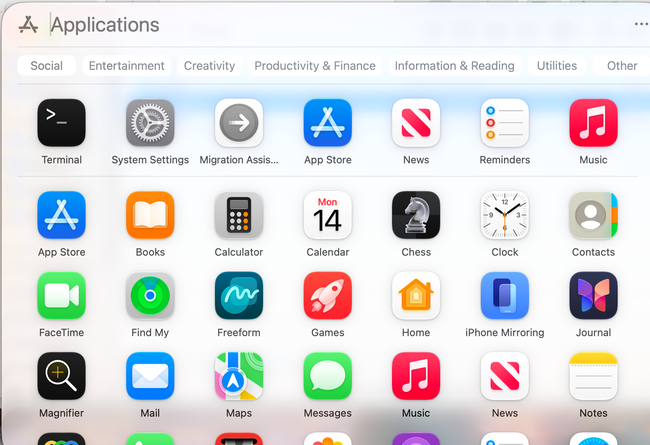
To keep an app within easy reach, drag it from Apps to the Dock or to the desktop.
Open Apps from Spotlight
Press Command + Space to open Spotlight, then press Command + 1 to show your apps. Use the arrow keys to move between apps, or click an app to open it.
You can also click the Spotlight icon (the magnifying glass) in the menu bar, then press Command + 1. The window that opens is titled Applications.
Set a keyboard shortcut for Apps
Keyboard Shortcuts settings list a shortcut named Show Apps, in the Spotlight group. Open System Settings > Keyboard > Keyboard Shortcuts to see its keys or choose your own.
Pinch the trackpad to show Apps
On a Mac with a trackpad, pinch with your thumb and three fingers to show Apps. Spread your thumb and three fingers to show the desktop instead. Trackpad settings list the gesture as Apps, where you can turn it on or off.
Browse apps by category
Apps sorts your apps into categories, such as Productivity & Finance. Click a category along the top of the window to see only those apps. Games from the Apple Games app appear in the Arcade category, and you can browse them with a game controller.
Apps you install from the App Store appear in Apps automatically. For an app you download from a website, drag it into the Applications folder, and it appears in Apps too.
Switch between grid and list view in Apps
To change how Apps lays out your apps, click the More button (three dots) and choose Grid or List.
To choose whether iPhone apps appear in Spotlight results, open System Settings > Spotlight and turn iPhone Apps on or off under Results from System.
Organize apps without Launchpad folders
Launchpad let you arrange icons on pages, group apps into folders, and delete App Store apps. Apps cannot do any of these. You cannot create folders or pages, rearrange icons, or hide a Mac app from the list.
The Mac's built-in tools cover the same needs:
- Dock: Keep the apps you use most in the Dock. Drag an app from Apps to the Dock to add it.
- Spotlight: Press
Command+Spaceand type the first few letters of an app's name. This is a quick way to open an app when you know its name. - Applications folder: Open the Finder and click
Applicationsin the sidebar to see every app. To delete an app you no longer want, drag it from this folder to the Trash. - Applications stack in the Dock: Drag the Applications folder from the Finder to the Dock, next to the divider line that separates apps from folders. Right-click it and choose to view its contents as a grid, and your apps open in a grid that looks like Launchpad.
Set a Hot Corner to open Apps
A Hot Corner runs an action when you move the pointer into a corner of the screen. Apps is one of the actions, in place of Launchpad in earlier macOS versions. To set it up:
- Open
System Settings>Desktop & Dock. - Scroll to the bottom of the pane and click the
Hot Cornersbutton. - Open the menu for a corner and choose
Apps. - Click
Done.
To avoid triggering the corner by accident, hold Command, Shift, Option, or Control while the menu is open. The corner then works only while you hold that key. For other useful Hot Corners, see Dock Settings for a New Mac.
Get Launchpad back in macOS 27
There is no supported way to bring back Launchpad. The Launchpad app is not part of macOS 27, so no setting or command restores it. Skip guides that claim to restore it, because Apple does not support any of them and some change protected parts of macOS.
For a grid of your apps that looks like Launchpad, use the Applications stack in the Dock described above. Third-party launcher apps are another option if you want folders and your own arrangement.
Continue setting up your Mac
Don't miss the full visual roadmap and checklist that shows how to set up a Mac for software development, with all the essential tools and settings you might not yet know about.