Show Hidden Files on Mac
How to show hidden files on Mac with the Command-Shift-Period keyboard shortcut in the Finder, or permanently with a terminal command. Show the Library folder, list dotfiles with ls -a, and fix hidden files that won't show.
Hidden files are files and folders that the Finder does not show you. macOS hides them because they hold settings and system data that many people never need to change. But if you're a software developer, or power user, you'll need to see hidden files.
Seeing hidden files is one step to set up a Mac for software development. This article is part of a series on Mac Setup.
Tested on macOS 27 Golden Gate, September 2026.
Before you get started
To show hidden files permanently, or to list dotfiles with ls -a, you'll need a terminal application. Apple includes the Mac terminal but I prefer Warp Terminal. Warp is an easy-to-use terminal application, with AI assistance to help you learn and remember terminal commands. Download Warp Terminal now; it's FREE and worth a try.
Learn what hidden files are on a Mac
Any file or folder whose name starts with a dot is hidden. These are called dotfiles, and many of them hold settings for command-line tools. macOS can also hide an item with a hidden flag, whatever its name. Your Library folder, which holds app settings and support files, is hidden this way.
Developers need to see and edit dotfiles. Your shell reads its settings from ~/.zprofile and ~/.zshrc, Git keeps your name and email in ~/.gitconfig, and SSH keys live in the ~/.ssh folder. The ~ stands for your home folder. To learn which shell file to use, see .zshrc or .zprofile and Shell Configuration.
Show hidden files with a keyboard shortcut
Open a Finder window, then press Command + Shift + . (period). Hidden files and folders appear dimmed, so you can tell them apart from ordinary items. Press the same keys again to hide them.
Make sure a Finder window is in front when you press the keys.
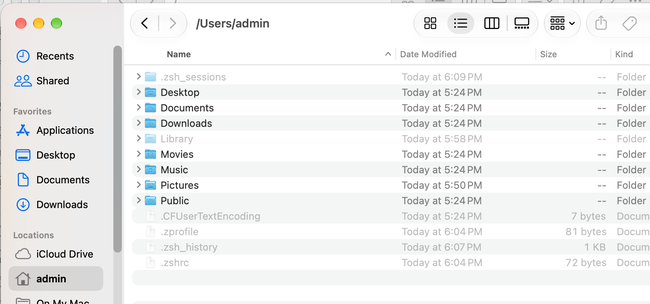
Show hidden files in Open and Save dialogs
The same shortcut works in the Open and Save dialogs that apps show when you open or save a file. This helps when you need to open a dotfile in a text editor. Press Command + Shift + . while the dialog is open.
Show hidden files permanently from the terminal
If you always want to see hidden files, change the Finder preference instead of pressing the shortcut each time. First, open a terminal application.
This command sets the Finder preference that shows all files:
$ defaults write com.apple.finder AppleShowAllFiles -bool true
The Finder reads its preferences when it starts, so restart it. This command quits the Finder, and macOS opens it again right away:
$ killall Finder
Hidden files now appear in every Finder window, and they stay visible after you restart your Mac.
Turn off hidden files in the Finder
To hide the files again, set the same preference to false:
$ defaults write com.apple.finder AppleShowAllFiles -bool false
Then restart the Finder so the change appears:
$ killall Finder
Show the Library folder on Mac
The Library folder in your home folder holds app settings, caches, and support files. You sometimes need it to fix an app or remove files an app left behind. macOS hides it so you don't change something by accident.
Open the Library folder from the Go menu
In the Finder, open the Go menu, then hold down the Option key. Library appears in the menu while you hold the key. Choose it to open your Library folder.
You can also choose Go > Go to Folder, or press Command + Shift + G, then type ~/Library to open it.
Show the Library folder permanently
To keep the Library folder visible in the Finder, remove its hidden flag with this command:
$ chflags nohidden ~/Library
The Finder may not show the change until you open another folder and come back. To hide the folder again, run this command:
$ chflags hidden ~/Library
List hidden files in the terminal
The ls command lists the files in a folder, and its -a option includes hidden files. This command lists everything in your home folder:
$ ls -a ~
You'll see names that start with a dot, such as .zprofile or .zshrc if you have created them. The first two entries, . and .., stand for the folder itself and the folder that contains it.
Fix hidden files that won't show
If the keyboard shortcut does nothing, check these causes in order.
Click the window before you press the shortcut
The shortcut works in a Finder window, on the desktop, and in Open and Save dialogs, but only in the one that is active. Click inside the Finder window, on the desktop, or in the dialog first, then press the keys again.
Use the period key next to the comma
Use the period key between the comma and slash keys, not the period on a numeric keypad.
Check that the folder has hidden files
Some folders contain no hidden items, so the shortcut has nothing to show. To check, run ls -a on the folder in a terminal application. If only . and .. appear, the folder has no hidden files.
Restart the Finder after a terminal command
After you run defaults write or chflags, the Finder may still show the old view. Open another folder and come back, or restart the Finder with killall Finder.
For more ways to set up the Finder, see Finder Settings for a New Mac.
Continue setting up your Mac
Don't miss the full visual roadmap and checklist that shows how to set up a Mac for software development, with all the essential tools and settings you might not yet know about.