The fm Command for Apple AI
The fm command in macOS 27 runs Apple's on-device language model from a terminal application, with no account, no API key, and no cloud fees. How to accept the license, check that the model is ready, ask it questions, use it in a script, and know what it is good for.
The fm command is Apple's Foundation Models command-line tool, and it comes preinstalled with macOS 27 Golden Gate. It sends your prompt to the small language model that supports Apple Intelligence, which runs entirely on your Mac, and shows you the answer in the terminal application. Nothing leaves your Mac, and nothing costs money. That is a new kind of tool to find in an operating system, and this guide shows what it does well and where it falls short.
If you are setting up your Mac for development, see the complete Mac setup checklist.
Before you get started
I recommend using our free app to get your command line ready to use for any command. It is a FREE Mac app that installs the Command Line Tools, configures your shell startup files, installs Homebrew and Git, and verifies everything works. Here are all the details about the app before you download. Then:
If your command line is ready, here is a guide to the fm command.
Know what the model is for
The on-device model is small. In terms of criteria that measure LLM capabilities, it has about 3 billion parameters, with a 4,096-token limit that covers your instructions, your prompt, and the answer combined. It does not have the capabilities of a frontier model like Anthropic's Claude, OpenAI's ChatGPT, or Google's Gemini. Apple describes it as a device-scale model built for summarization, extraction, and classification, and says plainly that it is not designed for world knowledge or advanced reasoning.
Apple publishes a list of what to ask it. Apple's examples show the fm command is intended to take text in and give transformed text back:
- Summarize a piece of text
- Extract the people, places, or items mentioned
- Answer a question about a passage you supply
- Rewrite or edit text, such as changing it to second person
- Classify text, or judge whether it is relevant to a topic
- Compose short creative writing
- Generate tags for a piece of text
Apple's own documentation says to avoid writing code, doing math, and logical reasoning with this model. Don't expect the model to know facts about the world.
For greater capabilities, Apple demonstrated a larger cloud model at WWDC 2026, Private Cloud Compute (PCC), reached with --model pcc. It is not in macOS 27.0. For now, the only model the command accepts is system, the on-device one, and fm respond --help lists no other. Apple may add it in a later update.
Limitations
The command invites questions at a prompt, and Apple's own first example in the console help is fm respond 'What is Swift?'. From that, I expected it to answer the things people ask at a terminal when they are stuck. I was wrong.
I tested it with five real beginner questions, on macOS 27.0 build 26A428, with default settings, once as pasted error messages and once as properly phrased questions. It got none of the five fully right either time. The answers indicate the limits of the on-device model:
- Asked about
brew update-all, a command that does not exist, it explained how to use it. On one run it added that Homebrew is typically installed by default on macOS. It is not. - Asked for the latest version of macOS, while running on macOS 27, it answered "Sonoma" on one run and "Monterey" on the next.
- Given the common error Unable to locate a Java runtime, pasted verbatim, it replied "Unable to work with that request."
- Asked properly how to fix
zsh: command not found: brew, it produced a five-step procedure that installs Homebrew by runningbrew, the command the error says is missing, and set the Homebrew prefix to the Intel path.
Pasting in error strings produced short, hedged replies. Asking well-phrased questions produced confident numbered procedures with code blocks and hallucinated answers. If you were to naively assume the on-device model can help with any terminal command, you would be wrong, and might not realize its limitations until you tried to follow its hallucinated instructions.
On its announced abilities, it did well. Given a real article from this site with a prompt that asked for a three-sentence summary, it produced an accurate summary with nothing invented. Asked for two file tags, it gave correct ones. So the fair description is this: the fm command is available, free, private, and good at transforming text you give it.
Here's how to use it.
First steps to the fm command
First, check the macOS version. If you're running an older version, update macOS to the latest macOS version.
The fm command is part of macOS 27 Golden Gate, which runs only on Macs with Apple Silicon. It is not in macOS 26 or any earlier version, and there is no separate download for it. If your Mac is on an older major version, upgrade macOS first.
Everything in this guide was tested on macOS 27.0, build 26A428, in September 2026, on a MacBook Air with Apple Silicon and 16 GB of memory. Apple updates the on-device model in routine macOS updates, so behavior can change after an update even when the command does not.
Confirm the fm command is installed
Open a terminal application and ask the shell where the command lives. The which command shows the path of a program if it is installed.
$ which fm
/usr/bin/fm
If you see /usr/bin/fm, the command is installed. If nothing appears, your Mac is not running macOS 27.
Accept the license before anything else
Until you accept Apple's license terms, the fm command does nothing. It will not answer a prompt, will not check the model, and will not even show its own help. Every attempt shows the same warning and stops:
YOU HAVE NOT AGREED TO THE APPLE FOUNDATION MODELS CLI LEGAL NOTICE & TERMS.
Agreeing to the Apple Foundation Models CLI Legal Notice & Terms applies to every user on the machine, so it must be run as a privileged user (e.g. 'sudo fm license').
This is a well-behaved error on macOS: it appears at once and names the exact command that fixes it. The license is for every user account on the Mac, which is why the command needs administrator rights through sudo. Run it, and enter your Mac password when asked.
$ sudo fm license
Password:
The notice is about eight lines. It binds you to the macOS software license agreement and prohibits use of Apple's models programmatically except as permitted. At the end it asks a question and waits. Type y and press Return. Anything other than yes or y declines and exits, and there is no "ask me later." You'll see You have agreed to these terms. and the command works from then on, for every user. Agreeing doesn't affect other AI models on your Mac, and you can undo it, as described below under fm command RAM and storage costs.
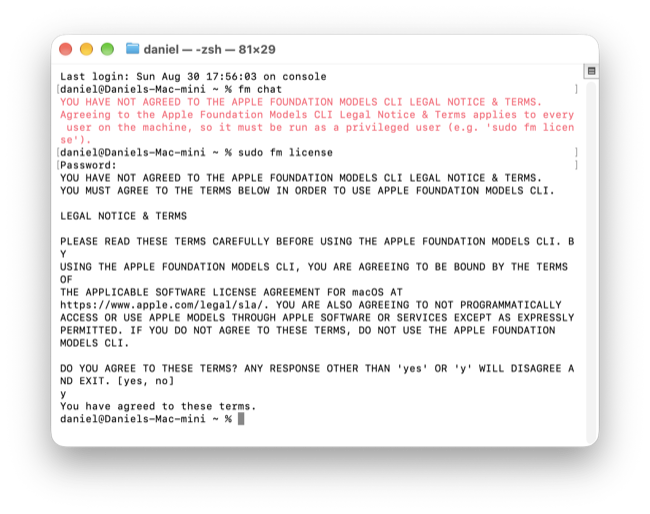
Note for anyone writing scripts: at this wall the command exits with status 69 and writes its warning to the error stream, not to standard output. A script that captures output the usual way gets an empty string and no visible reason. Check the exit status, as shown in the scripting section below.
Check that the model is ready
The fm command can be installed and licensed and still unable to answer, because the language model itself is a separate download. Apple says those models need up to 14 GB of storage on Macs with an M3 chip or later and at least 12 GB of memory, and up to 8 GB on other Macs. macOS downloads them in the background after you install macOS 27. The fm available command tells you whether they have arrived.
$ fm available
System model available
That line means you are ready. If instead you see System model unavailable: modelNotReady, the model is not on your Mac yet, and fm respond and fm chat will answer with Error: The model is not available. Try again later. until it is.
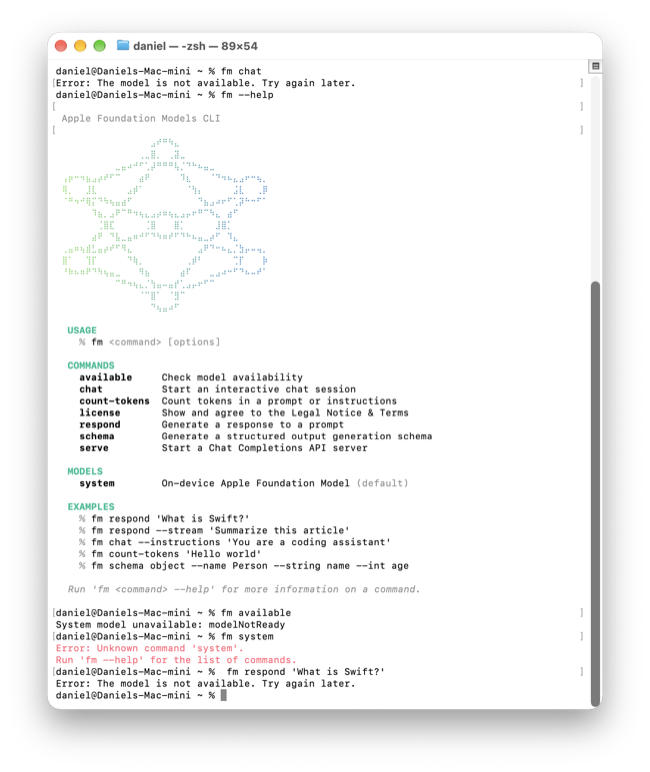
Apple says the download happens automatically based on network status, battery level, and system load, and gives no estimate of how long it takes. So leave the Mac plugged in, on Wi-Fi, and idle, then run fm available again later.
The terminal never tells you any of this. Compare a missing Xcode Command Line Tools, where typing a command such as git opens a dialog that downloads the tools and shows progress. The model download is the same situation, and macOS tracks it, but only says "try again later" without a progress bar.
Ask the model a question
fm respond sends one prompt and shows the answer. Apple's own usage example pipes the question in from echo. It is a good example of avoiding every shell-quoting problem that might arise with apostrophes and exclamation marks in a pasted message.
$ echo 'Explain what the chmod command does, in three sentences.' | fm respond
The answer streams in word by word. The model is small, so Apple advises: ask for one specific task per prompt, and say how long the answer should be. In this example, asking for three sentences both shortens and speeds up the reply.
If you save the output to a file, add --no-stream so the file does not fill with partial writes:
$ echo 'Explain what the chmod command does, in three sentences.' | fm respond --no-stream > answer.txt
Start a conversation with fm chat
fm chat opens a back-and-forth session in the terminal, so you can ask follow-up questions. You can set the model's role for the whole session with --instructions:
$ fm chat --instructions 'You are a patient tutor who explains Unix commands.'
To leave the chat and return to the shell prompt, press Control-C. Sessions are saved in ~/.fm/sessions/, so nothing is lost: run fm chat --continue to pick up the most recent one, or fm chat --resume <name> to reopen a named session.
Use the fm command in a script
You can use this tool effectively for a shell script that needs a judgment plain shell tools cannot make, such as sorting files by messy human names.
Put the text on standard input and the instruction in --instructions. Tested this way, the model produced an accurate two-sentence summary of a paragraph about Homebrew, with every detail traceable to the source:
$ cat notes.txt | fm respond --instructions 'Summarize the input in two sentences.'
If you have experience with shell scripting, you might try piped text plus a prompt on the command line. This doesn't work well:
$ cat notes.txt | fm respond 'Summarize this in two sentences.'
With a prompt in that position, the piped text is silently discarded, and the model summarizes a document it never saw. Three runs of that command on a document about Homebrew described a story about a character named Alex, a text about setting goals, and a text about mental health and exercise. There is no error, no warning, and the exit status is 0. Getting it right requires using the --instructions flag.
Here are two more techniques for good results with scripting:
- Check the exit status. Add
set -eat the top of the script, or test$?after each call, so an unlicensed or model-not-ready run stops the script instead of passing an empty string down the pipeline. - Reconcile the output against the input. In Apple's own file-sorting demonstration, run while researching this guide, the model returned eight of ten file names and silently dropped two. Check results against input to catch a dropped file.
For output a script can parse, build a schema with fm schema object and pass it to fm respond --schema. The model returns JSON that matches the schema, which jq can read. Tested with Apple's file-sorting example, the JSON was valid on the first try. Count the rows to avoid dropped files.
$ fm schema object --name FileList --string final_files --array --string draft_files --array > schema.json
$ ls | fm respond --instructions 'Sort these file names into final_files and draft_files.' --schema schema.json
Get help for the fm command
The help command fm --help lists every command. The help begins with a large Apple logo drawn in Braille characters, so a copied help screen is mostly escape codes. Take a screenshot instead of pasting it.
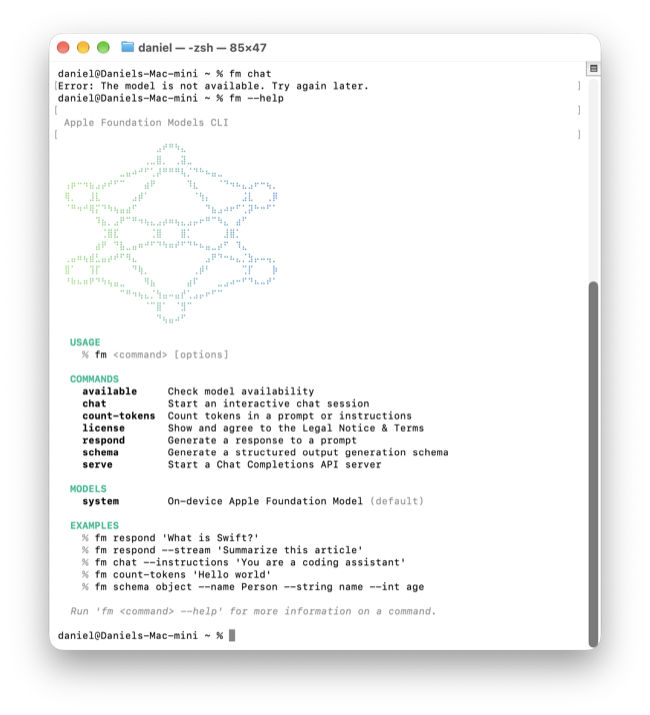
There is no fm --version. It returns Error: Unknown option '--version'. Because Apple updates the model with macOS, the nearest thing to a model version is the macOS build number, which sw_vers shows.
Fix problems with the fm command
Three separate conditions stand between installing macOS 27 and a first answer, and each has a different fix.
Every command shows the license warning
The terms have not been accepted on this Mac. Run sudo fm license and type y, as described above. This is the one wall the terminal signposts well.
fm available says modelNotReady
The model has not finished downloading. Leave the Mac on power and Wi-Fi, keep it idle, and run fm available again later. Apple gives no duration. Do not try to watch the download by reading /System/Library/AssetsV2/ from the terminal: macOS refuses with Operation not permitted.
fm available says appleIntelligenceNotEnabled
Apple's support article tells Mac users to find an Apple Intelligence switch under "Apple Intelligence & Siri," but that item does not exist in macOS 27's System Settings. The pane is simply "Siri," and the fm command works whether Siri is on or off. If you see this error, macOS itself names the conditions that block Apple Intelligence: an unsupported country or region (China mainland is excluded), a Mac language and Siri language that do not match, starting the Mac from an external volume, and System Integrity Protection turned off. The last two may matter to developers. macOS states them as blockers.
A script gets an empty answer
Two causes produce empty output with no message. The license has not been accepted, which gives exit status 69. Or the script piped text in and also passed a prompt on the command line, which discards the text. Check the exit status, and use the --instructions form.
fm command RAM and storage costs
If you run other AI models on your Mac, with tools such as Ollama, LM Studio or MLX, you may wonder whether the fm command takes memory or storage away from them. It takes very little. I measured it on an M3 MacBook Air with 16 GB of memory, running macOS 27.0.1, in October 2026.
The license doesn't affect other AI models
Apple's terms ask you to follow the macOS software license and not to use Apple's models from your own programs except where Apple allows it. They say nothing about other companies' models. Agreeing writes one 128-byte file, /Library/Preferences/com.apple.fm.plist, that records the license version and the date you agreed. It uses no memory.
The model uses little memory when idle
Apple's model runs in a background service, TGOnDeviceInferenceProviderService, which loads the model when a request arrives. Measured with the top command, its two processes used about 450 MB together while idle and about 650 MB while the model wrote an answer. That is 3 to 4 percent of a 16 GB Mac. Leaving fm serve running didn't keep the model loaded. When you're not using the fm command, almost all memory is free for other apps and local models.
Apple Intelligence features load the same model in the same way. Its other background services used under 70 MB together while idle. To watch the memory on your own Mac, open Activity Monitor and search for TGOnDeviceInference.
The fm command uses almost no storage
The fm program, /usr/bin/fm, is 3.2 MB and comes with macOS. The license file is 128 bytes, and fm chat saves each conversation as a file of a few kilobytes in ~/.fm/sessions/.
The language model is the large part, up to 14 GB as described above, and it belongs to Apple Intelligence. macOS downloads it after you upgrade to macOS 27, whether or not you ever use the fm command. Some people report Apple Intelligence using more than 20 GB. macOS 27 has no switch to turn Apple Intelligence off, so Apple offers no way to remove the models.
Undo the license agreement
To return the fm command to the state before you agreed, move the license file aside:
$ sudo mv /Library/Preferences/com.apple.fm.plist ~/Desktop/
Then fm license --status reports Not agreed, and the fm command asks you to agree again before it does anything. This frees no memory, because the agreement never used any. To remove saved conversations, delete the ~/.fm folder. The fm program itself is part of the protected macOS system volume and can't be removed, but it uses nothing while it isn't running.
Go further with the Python SDK and fm serve
Apple ships another way to use the same model: a Foundation Models SDK for Python, installed with pip install apple_fm_sdk. It requires Python 3.10 or later, Xcode, and a Mac with Apple Silicon, and it supports features the command does not, such as tool calling. If you want it, start by installing Python.
The fm command can also act as a local server. fm serve starts an HTTP endpoint that speaks the same chat-completions format as OpenAI's API, on a port or a Unix socket, so tools written for that API can talk to the on-device model instead. It does not fetch remote URLs.
Continue setting up your Mac
Don't miss the full visual roadmap and checklist that shows how to set up a Mac for software development, with all the essential tools and settings you might not yet know about.