Check macOS Version
Check Mac version. How to check the macOS version in terminal or system settings. How to upgrade to macOS 27.
The latest macOS version is macOS 27 Golden Gate (as of September 14, 2026).
Before you start work and install anything, check your macOS version. Here's how. You can use the Terminal to check for the latest macOS version. Using the terminal gives you experience and confidence with the command line. With the terminal you have more control over your Mac as a power user or developer. Or you can check the macOS version in the System Settings.
Try a better terminal
To get the most out of your Mac, and level up your skills, I show how to use terminal commands in this guide. If you're not using it yet, I recommend Warp Terminal, with modern features and built-in AI help for remembering commands. Download Warp for free before you continue.
After you check the macOS version
The latest Mac version is macOS 27 Golden Gate (as of September 14, 2026). See the article on the latest macOS version to learn if you should upgrade to the newest version.
Here's what you need to know:
If you don't have macOS 27 Golden Gate, get the latest macOS version on your Mac with these instructions:
After you upgrade your macOS, see Set Up a Mac Like a Pro to customize your Mac.
Terminal or user interface?
There are two ways to check the macOS version:
- Use the Mac Terminal
- Check "About This Mac" in the graphical interface
If you're not using Warp Terminal, see How to Open Terminal in Mac.
Alternatively, you can check the macOS version in the graphical interface. It's easier for beginners and I'll show you how, but I suggest you get comfortable now with the terminal.
Get the macOS version in the Terminal
Quickly check the macOS version in the command line by using the sw_vers command:
- Type
sw_versand pressEnter. - The command will display information about the macOS including ProductName, ProductVersion, and BuildVersion.
Check that the ProductVersion number is 27. The sw_vers command doesn't give you the marketing name of the macOS version (the latest is "Golden Gate").
Don't type the $ character you see in the example below (otherwise you'll see zsh: command not found: $). It's just a convention we use to indicate the command line prompt.
$ sw_vers
ProductName:		macOS
ProductVersion:		27.0
BuildVersion:		25A354
You can check for available macOS updates using the softwareupdate command:
$ softwareupdate -l
Software Update Tool

Finding available software
No new software available.
You can use the softwareupdate command from the Terminal to install updates. If you don't have the latest macOS, see the article upgrade macOS for instructions to update your macOS version. After you upgrade your macOS, configure the system settings for the Finder, Dock, and more with Mac Setup.
How to check the macOS version using "About This Mac"
If you don't want to use the Mac Terminal, you can check the macOS version in the Mac graphical interface.
- Click the Apple logo in the top-left corner of your screen.
- Select
About This Macfrom the dropdown menu. - A window will appear displaying your macOS version. It will show the version number of the macOS release.
For "macOS," it should show "27.0” or newer. Notice, for "Chip," whether you have Apple M series ("Apple Silicon") or Intel (on older Macs). Intel chips are no longer supported on macOS 27 or newer.
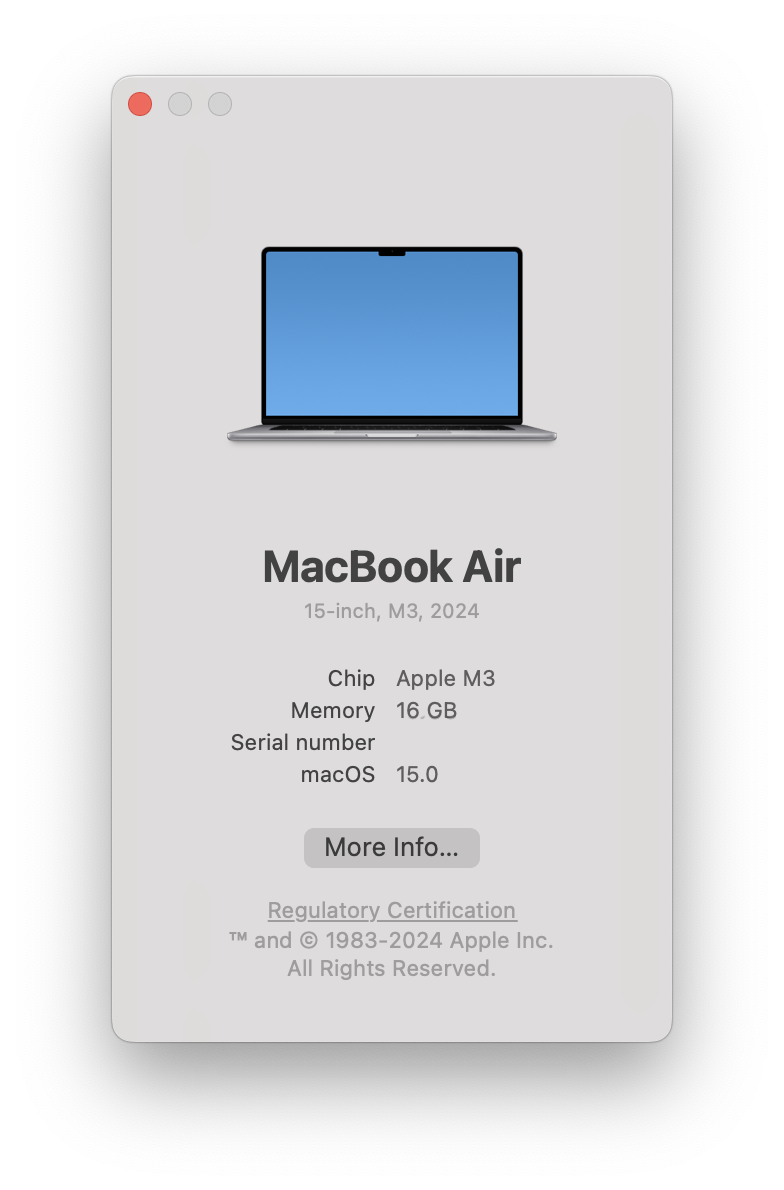
If you don't have the latest macOS, see the article upgrade macOS for instructions to upgrade from older versions.
MacOS version information
Since macOS 10.9 Mavericks, Apple has used California locations as the marketing names for macOS versions. Major version numbers began changing with the release of macOS 11 Big Sur in 2020. The macOS versions 16-25 don't exist; Apple chose to match the product name with year following its release starting with macOS Tahoe 26 in 2025.
The version number follows the semantic versioning format of major.minor. For example, for macOS Sonoma 14.5, "14" is the major version, and "5" is the minor version.
Wikipedia's macOS history or Apple's list of macOS versions shows previous versions.
After upgrading the macOS version
After you upgrade to the latest macOS version, you can:
macOS for software developers
If you are developing software on the Mac, Set Up Your Mac are the free macOS apps from the author of the Mac Install Guide. Each app does one job reliably: it checks what you already have, installs and configures what is missing, and then proves the result works in a fresh terminal. You finish with a working setup, not just a download.
The apps do everything the written Mac Install Guide articles cover, but faster and with a verified result. They are free. There is no paid upgrade, no trial period, no account to create. Every app is signed and notarized by Apple, shows each change before executing, and does not run in the background after you quit. Read more about the Set Up Your Mac apps and how they work.
For a direct download link, here are my apps you can use for setting up your Mac after upgrading macOS:
What's next
My mac.install.guide is a trusted source of installation guides for professional developers. Take a look at the Mac Install Guide home page for tips and trends and see what to install next.