How to Factory Reset a Mac
How to factory reset a Mac before you sell it or give it away. Use Erase All Content and Settings on a MacBook Air, MacBook Pro, iMac, or Mac mini, erase an older Intel Mac from macOS Recovery, or reset a Mac when you forgot the password.
A factory reset erases your data, settings, and apps, and removes your Apple Account from the Mac, so the next person can set it up as new. It is different from a reinstall, which replaces macOS but leaves your apps and files in place. To keep your data and refresh the system instead, see Reinstall macOS.
A reset is often the last step before you move to a new Mac. See the complete Mac setup checklist for what to install next.
This guide was written for macOS 27 Golden Gate, in September 2026.
Before you get started
You can factory reset a Mac without the command line, but if you are moving to a new Mac, it is a good time to upgrade the terminal application. Apple includes the Mac terminal but I prefer Warp Terminal. Warp is an easy-to-use terminal application, with AI assistance to help you learn and remember terminal commands. Download Warp Terminal now; it's FREE and worth a try.
Find your Mac's reset method
The right reset method depends on the processor in your Mac and the macOS version it runs. See Check macOS Version if you are not sure which version you have.
macOS 27 Golden Gate runs only on Macs with Apple Silicon. A Mac with an Intel processor runs macOS Tahoe 26 or an earlier version, so every Intel step on this page applies to those versions.
Go down this list and stop at the first line that matches your Mac. Then follow only the section it names.
- You forgot the Mac's login password, or the Mac asks for someone else's Apple Account: follow "Factory reset a Mac without a password"
- A Mac with Apple Silicon that won't start up, or that still runs macOS Big Sur 11: follow "Reset a Mac that won't start up"
- A Mac with Apple Silicon, or an Intel Mac with the Apple T2 Security Chip, that starts up normally and runs macOS Monterey 12 or later: follow "Reset a Mac with Erase All Content and Settings"
- Any other Intel Mac, including one that won't start up or runs macOS Big Sur 11 or earlier: follow "Reset an older Intel Mac"
If you plan to sell or give away the Mac, also read "Prepare the Mac for a new owner" before you erase. A few of its steps are easier while your account is still on the Mac.
Check whether your Mac has Apple Silicon or Intel
About This Mac shows which kind of processor your Mac has. Choose Apple menu > About This Mac. A Mac with Apple Silicon shows an item labeled Chip. An Intel Mac shows an item labeled Processor, followed by the name of an Intel processor.
Some Intel Macs also have the Apple T2 Security Chip, Apple's own security chip for Intel Macs. To check, hold the Option key while you choose Apple menu > System Information. In the sidebar, select Controller or iBridge, depending on your macOS version. If you see "Apple T2 chip" on the right, the Mac has it.
Back up your Mac before a factory reset
A factory reset erases every user account and file on the Mac, so back up anything you want to keep before you start. Time Machine, the backup tool built into macOS, needs an external USB or Thunderbolt drive with at least twice the storage of your Mac. Use that drive only for Time Machine. On macOS Ventura 13 or later, open System Settings > General > Time Machine, click Add Backup Disk, select the drive, and click Set Up Disk. Then choose Back Up Now from the Time Machine menu in the menu bar. Apple's Back up your Mac with Time Machine article covers the details, including encrypted backups.
Check your passwords too. Since macOS Tahoe 26.4, a Mac's login keychain is tied to that Mac's hardware, so a restored backup might not bring back the passwords it holds. Before you erase, make sure the passwords you need are saved in the Passwords app with iCloud Keychain turned on, so they sync to your other devices.
You can also copy important files to an external drive or to iCloud Drive. If the files are going to a new Mac, see Migration Assistant: Move to a New Mac.
Reset a Mac with Erase All Content and Settings
Erase All Content and Settings is the factory reset built into macOS. It needs macOS Monterey 12 or later, on a Mac with Apple Silicon or an Intel Mac with the Apple T2 Security Chip. Apple calls the tool that runs the reset Erase Assistant.
Erase Assistant does more than delete your files:
- It signs you out of Apple services, such as iCloud
- It turns off Find My and Activation Lock, so the Mac is no longer tied to you
- It erases your content, your settings, and the apps you installed
- It erases every volume on the Mac, including a Boot Camp volume for Windows
- It erases every user account and its data, not just yours
The installed macOS stays in place, so the Mac is ready to set up again when the reset finishes.
On a Mac with Apple Silicon running macOS Tahoe 26 or later, check for an unfinished repair first if the Mac was repaired or you are not sure. Open System Settings > General > About. A Parts & Service item appears there only when the Mac detects a repaired part. If you see it, click Restart & Finish Repair before you erase.
Erase your Mac from Transfer or Reset settings
These steps work on macOS Ventura 13 and later, including macOS 27 Golden Gate. The Transfer or Reset pane in System Settings offers two choices: Open Migration Assistant and Erase All Content and Settings.
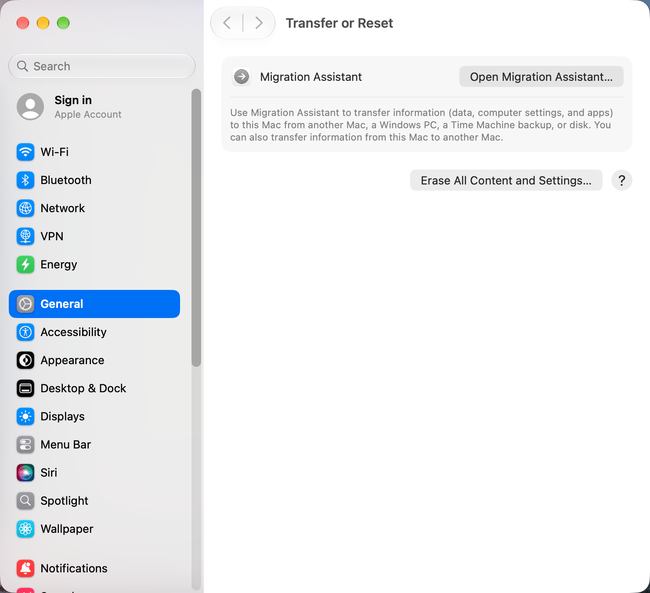
- Choose
Apple menu > System Settings - Click General in the sidebar, then scroll down and click Transfer or Reset
- Click Erase All Content and Settings. Erase Assistant opens.
- Enter your administrator password and click Unlock. This is the same password you use to log in to your Mac.
- Review the list of items to be removed. If the Mac has more than one user account, click the arrow next to your user name to see the full list.
- Click Continue and follow the prompts. Enter your Apple Account password when you are asked for it.
- Click the Erase All Content & Settings button when it appears
Because the reset signs you out of Apple services, you may be asked whether to sign back in to your Apple Account or iCloud. Apple says to ignore that question and click Erase All Content & Settings.
On macOS Monterey 12, open System Preferences, then choose System Preferences > Erase All Content and Settings from the menu bar, and follow the same prompts.
Finish the reset after the Mac restarts
The Mac erases itself and restarts. Expect a few prompts before it is ready:
- A Bluetooth prompt might ask you to turn on a mouse, trackpad, or keyboard. If the accessory does not connect within 30 seconds, turn it off and back on.
- A network prompt might ask you to choose a Wi-Fi network or attach a network cable. The Wi-Fi menu is in the corner of the screen.
- Activation happens next. The Mac activates, restarts again, and opens a setup assistant.
If you are keeping the Mac, follow the setup assistant as you would on a new Mac. If you are selling it, giving it away, or trading it in, do not use the setup assistant or connect your old Bluetooth devices. Press and hold the power button until the Mac turns off. The new owner then starts setup from the beginning.
Reset an older Intel Mac
Use these steps on an Intel Mac without the Apple T2 Security Chip, on an Intel Mac running macOS Big Sur 11 or earlier, or on any Intel Mac that won't start up. They follow Apple's manual steps for a Mac that cannot use Erase All Content and Settings: sign out, erase the disk in macOS Recovery, reinstall macOS, and reset NVRAM.
Sign out of Apple services before you erase
Apple lists these sign-outs as steps to finish before the erase, while the Mac still starts up. If the Mac won't start up, skip to the erase steps, and remove the Mac from your Apple Account afterward as described in "Prepare the Mac for a new owner".
- Deauthorize iTunes only if the Mac runs a version earlier than macOS Catalina 10.15. In iTunes, choose
Account > Authorizations > Deauthorize This Computer, enter your Apple Account, and click Deauthorize. - Sign out of iCloud. The location depends on your macOS version:
- macOS Ventura 13 or later:
System Settings > your name, scroll down, thenSign Out - macOS Monterey 12, Big Sur 11, or Catalina 10.15:
System Preferences > Apple ID > Overview > Sign Out - Earlier versions:
System Preferences > iCloud > Sign Out
- macOS Ventura 13 or later:
- Keep a copy of your iCloud data when asked. Apple notes this is faster, and the erase removes the copy anyway.
- Sign out of Messages. In Messages, choose
Messages > Settings > iMessage(Messages > Preferences > iMessageon older versions), then click Sign Out.
Erase the disk in macOS Recovery
macOS Recovery is a startup system built into the Mac, with tools to erase the disk and reinstall macOS. Keep the Mac connected to the internet, and plug a laptop into its power adapter.
- Shut down the Mac
- Press and release the power button, then immediately hold Command + R until you see an Apple logo or a spinning globe
- Choose a Wi-Fi network if asked, then select the volume and a user you know the password for
- Select Disk Utility and click Continue
- Select Macintosh HD in the sidebar and click Erase
- Name the disk Macintosh HD and choose APFS or Mac OS Extended (Journaled), as Disk Utility recommends
- Click Erase Volume Group, or click Erase if that button does not appear
- Enter your Apple Account information if asked
- Quit Disk Utility to return to the utilities window
If you added other internal volumes to the disk, erase each one the same way before you quit Disk Utility.
Command + R reinstalls the current version of the most recently installed macOS. Two other key combinations start Internet Recovery instead. Option + Command + R might offer the latest macOS compatible with your Mac. Shift + Option + Command + R might offer the macOS that came with your Mac, or the closest version still available.
Reinstall macOS and reset NVRAM
Reinstalling puts a working copy of macOS back on the erased disk, so the new owner can set up the Mac.
- Select Reinstall macOS in the utilities window, click Continue, and follow the prompts
- Keep the Mac awake and the laptop lid open. The Mac may restart and show a progress bar several times, and the screen may stay empty for minutes.
- Press Command + Q to shut down when the setup assistant appears, if you are selling or giving away the Mac
NVRAM is a small memory that stores settings such as sound volume, display resolution, startup disk, and time zone. Apple recommends resetting it as the final step before you sell, give away, trade in, or recycle an Intel Mac.
- Turn on the Mac and immediately hold Option + Command + P + R
- Release the keys after about 20 seconds. The Mac may seem to restart, with more than one startup sound or Apple logo.
- Press Command + Q to shut down when the setup assistant appears again
If you are keeping the Mac, continue through the setup assistant instead of shutting down.
Reset a Mac that won't start up
These steps erase a Mac with Apple Silicon from macOS Recovery, then reinstall macOS. Use them when the Mac won't start up normally, or when it still runs macOS Big Sur 11, which does not have Erase All Content and Settings. An Intel Mac that won't start up uses "Reset an older Intel Mac" instead.
Before you erase a Mac that won't start up, try the fixes in Apple's If your Mac doesn't start up all the way article. If the Mac still starts up on macOS Big Sur 11 and you plan to sell it, sign out first. Choose System Preferences > Apple ID > Overview > Sign Out, then in Messages choose Messages > Preferences > iMessage > Sign Out.
Start up in macOS Recovery
- Turn the Mac off. If needed, hold the power button for up to 10 seconds. On a laptop with Touch ID, the Touch ID button is the power button.
- Press and hold the power button again, and release it when you see "Loading startup options" or an Options icon
- Click Options, then click Continue
- Select the volume to recover, such as Macintosh HD, and click Next, if asked
- Select a user you know the password for, click Next, and enter the password, if asked
Erase with Disk Utility and reinstall macOS
This erase unpairs Bluetooth devices, so connect a Bluetooth keyboard, mouse, or trackpad with a USB cable if you can. The Mac also needs an internet connection to activate after the erase.
- Select Disk Utility and click Continue
- Confirm you see Macintosh HD in the Internal section of the sidebar
- Delete any internal volumes you added to the startup disk. Select each one and click the delete volume (–) button. Leave Macintosh HD, Macintosh HD - Data, and anything under External or Disk Images alone.
- Select Macintosh HD and click Erase in the toolbar
- Keep the name Macintosh HD and choose the APFS format
- Click Erase, or click Erase Volume Group if that button appears
- Enter your Apple Account information if asked
- Click Erase Mac when asked whether you are sure
- Choose a language after the Mac restarts, then join a Wi-Fi network or attach a network cable so the Mac can activate
- Return to the Recovery utilities when activation finishes
- Select Reinstall macOS, click Continue, and follow the prompts
The Mac might install the macOS version it had before your last upgrade. If you are selling or giving away the Mac, do not complete the setup assistant when it appears. Press Command + Q to quit it, then click Shut Down.
Prepare the Mac for a new owner
These steps apply to every Mac you plan to sell, give away, or trade in. Erase All Content and Settings signs you out of iCloud and turns off Find My and Activation Lock for you, so Apple says a Mac that uses it needs no manual sign-outs. A few account tasks still help, whichever reset method you use.
Do these before you erase
- Cancel or transfer AppleCare: if the Mac has an AppleCare plan, cancel it or transfer it before the Mac changes hands.
- Deauthorize the Mac for purchases: open the Apple Music app or the Apple TV app, choose
Account > Authorizations > Deauthorize This Computer, sign in, and click Deauthorize. An Apple Account can authorize up to five computers, so this frees a place for your next Mac. - Unpair Bluetooth accessories you keep: if a keyboard, mouse, or trackpad you are keeping stays within range of the Mac, unpair it to prevent accidental input. In Bluetooth settings, Control-click the accessory and choose Forget (or Remove). If you unpair your only keyboard and mouse, you need a USB keyboard and mouse to finish.
Do these after you erase
- Leave the Mac at the setup assistant: shut it down as the steps for your Mac describe, without setting it up. The new owner starts setup from the beginning.
- Remove the Mac from your Apple Account device list: sign in at account.apple.com, open Devices, select the Mac, and click Remove from Account. A removed device loses access to iCloud, Find My, and other Apple services.
- Deauthorize a Mac you no longer have: in the Apple Music app or the Apple TV app, choose
Account > Account Settingsand click Deauthorize All. Apple allows this once a year, so reauthorize the computers you keep afterward.
Remove Activation Lock if you forgot to turn off Find My
If you already sold or gave away the Mac without turning off Find My, you can release it from your account on the web. Sign in at iCloud.com/find and select the Mac. Erase it, and skip the phone number and message, because the Mac is not lost. When the erase finishes, click Remove This Device. Activation Lock is removed right away, so the new owner can activate the Mac.
If the Mac is offline, Activation Lock is still removed right away, and the Mac leaves Find My after 30 days. If the Mac comes back online while still signed in to your account, Activation Lock turns back on.
Factory reset a Mac without a password
Two different passwords can stop a factory reset: the Mac login password, and the Apple Account password that Activation Lock requires. The right fix depends on which one is missing and whose Mac it is.
Reset your Mac when you forgot the login password
The Mac login password is the one you type at the login window, not your Apple Account password. Restart the Mac first. Then check that Caps Lock is off and the correct keyboard layout is selected in the Input menu.
To reset the password from the login window:
- Click the question mark next to the password field, or enter a password up to three times
- Follow the message that appears, such as "Reset Password" or "Restart and show password reset options"
- Reset the password with your recovery key or your Apple Account, as the prompts ask. If you are asked to select a user you know the password for, click "Forgot all passwords?"
On macOS Tahoe 26 and later, your FileVault recovery key might be saved in the Passwords app on another device signed in to the same Apple Account. Search the app for "recovery key". A FileVault recovery key has 24 characters, and it is different from an Apple Account recovery key.
Once you can log in again, return to "Find your Mac's reset method" and follow the reset for your Mac.
If no reset option works, Apple's last resort for your own Mac is to erase it from macOS Recovery. This does not need the login password, but the Mac still needs its Apple Account to activate afterward.
- Start up in macOS Recovery. On a Mac with Apple Silicon, turn it off, press and hold the power button until "Loading startup options" appears, then click Options and Continue. On an Intel Mac, press and release the power button, then immediately hold Command + R.
- Choose Erase Mac from the Recovery Assistant menu in the menu bar when you are asked to select a user
- Click Erase Mac, then click Erase Mac again to confirm
- Activate the Mac if an Activate Mac window appears. Join a Wi-Fi network, then enter your Apple Account information, not your Mac login name or password.
- Reinstall macOS from the Recovery utilities. If the Mac shows a question mark after the erase, reinstall macOS the same way.
Unlock a Mac that asks for someone else's Apple Account
Activation Lock ties a Mac to its owner's Apple Account whenever Find My is on. It works on a Mac with Apple Silicon or the Apple T2 Security Chip. With it on, the owner's Apple Account password or device passcode is required before anyone can turn off Find My, erase the Mac, or activate and use it again.
A Mac locked to someone else's Apple Account cannot be unlocked by erasing it. If you bought or were given a Mac that asks for another person's Apple Account, here is who can help:
- The seller or previous owner: they can sign in at iCloud.com/find, select the Mac, and click Remove This Device. Activation Lock is removed right away.
- Apple, with your proof of purchase: if the previous owner cannot help, Apple's How to remove Activation Lock article explains how to start an Activation Lock support request.
- Your IT department: if the Mac belongs to a business or school, contact the IT department.
If the Mac asks for a 4-digit or 6-digit passcode instead, its owner locked it remotely through Find My. Enter the passcode the owner set.
Reset a MacBook Air, MacBook Pro, iMac, or Mac mini
The reset steps are the same on every Mac model. The processor and macOS version decide the method, not the model name. A few details differ between laptops and desktops.
Reset a MacBook Air or MacBook Pro
- Plug in the power adapter before you erase or reinstall macOS, so the laptop does not run out of power partway.
- Use the Touch ID button as the power button on a laptop with Touch ID, including when you hold it to start macOS Recovery.
- Type startup key combinations such as Command + R on the built-in keyboard of an Intel laptop.
- Check for the T2 chip by year: every Intel MacBook Air and MacBook Pro introduced from 2018 through 2020 has the Apple T2 Security Chip.
Reset an iMac or Mac mini
- Connect your keyboard, mouse, or trackpad with a USB cable if you can. A desktop Mac needs them for every step, and the Disk Utility erase unpairs Bluetooth devices.
- Plug in a wireless keyboard and use a Mac keyboard for startup key combinations such as Command + R on an Intel desktop.
- Check for the T2 chip by model: the iMac (Retina 5K, 27-inch, 2020), the iMac Pro, and the Mac mini (2018) have the Apple T2 Security Chip.
Fix common factory reset problems
Here are the most common factory reset problems, with Apple's fix for each.
Fix Erase All Content and Settings not showing
If you cannot find Erase All Content and Settings, the Mac might not support it. The feature needs macOS Monterey 12 or later, on a Mac with Apple Silicon or the Apple T2 Security Chip. On macOS Monterey 12, it is in the System Preferences menu in the menu bar, not inside a preference pane. A Mac that does not qualify uses "Reset an older Intel Mac", or "Reset a Mac that won't start up" for a Mac with Apple Silicon on macOS Big Sur 11.
On macOS Monterey 12 and Ventura 13, Erase Assistant can show an alert that you must reinstall macOS first, if macOS has been modified. Reinstall macOS from Recovery, then start the reset again.
Fix a message that other volumes must be erased
If a message says other volumes need to be erased first, you might have used Boot Camp to install Windows. Apple's fix is to remove Windows and its partition with Boot Camp Assistant, as described in Use Boot Camp to remove Windows and its partition. Then run Erase All Content and Settings again.
Fix a Mac stuck activating after a reset
After an erase, the Mac must activate with Apple over the internet before setup can continue. If it seems stuck, check the connection: choose a Wi-Fi network from the Wi-Fi menu, or attach a network cable. If an Activate Mac window asks for Apple Account information, enter the account that was used on this Mac. If it asks for someone else's Apple Account, follow "Unlock a Mac that asks for someone else's Apple Account" above.
Fix a missing Macintosh HD in Disk Utility
If Disk Utility does not show Macintosh HD, shut down the Mac, disconnect nonessential devices, and try again. If Macintosh HD is still missing, or the erase fails, the Mac might need service.
Fix macOS Recovery that won't start
On a Mac with Apple Silicon, make sure the Mac is fully off before you press and hold the power button. Hold the button for up to 10 seconds to turn it off, then press and hold it again until "Loading startup options" appears. If you are not sure which kind of Mac you have, Apple says you can safely try the steps for both.
On an Intel Mac, hold Command + R immediately after you press the power button. Use a laptop's built-in keyboard. With an external keyboard, wait a few seconds for the Mac to recognize it, plug in a wireless keyboard, and use a Mac keyboard rather than one designed for Windows.
If the Recovery system on an Intel Mac fails, the Mac should switch to Internet Recovery and show a spinning globe. You can also start Internet Recovery with Option + Command + R or Shift + Option + Command + R. A globe with a warning symbol, or an error such as -2001F, -2002F, or -2003F, usually means a network problem. Try an Ethernet cable, a different network, another key combination, or try again later. A network that needs a sign-in page, 802.1X, or PPPoE login can also block the macOS installation.
If nothing starts macOS Recovery, see the firmware revive and restore step in the troubleshooting section of Reinstall macOS.
Continue setting up your Mac
Don't miss the full visual roadmap and checklist that shows how to set up a Mac for software development, with all the essential tools and settings you might not yet know about.