How to Open Terminal on Mac
How to open Terminal on Mac: get a FREE app to upgrade and open Terminal and set up the command line, or press Command-Space and type "terminal." Updated for macOS 27.
The Mac Terminal is a command-line interface (CLI) that allows you to interact with the operating system and run commands. The Mac Terminal application or console gives us access to the Unix command line, or shell. See Mac Terminal for a full introduction.
Apple provides its own built-in Mac Terminal application. There is no need to download and install it. However, most developers install an upgraded third-party terminal application for a better user experience. Here's an article that compares and recommends Mac Terminal Alternatives to Download.
This article shows how to find and open the Mac Terminal application. Get a FREE app to upgrade and open a terminal on Mac.
The terminal application is used to control the computer from the command line. Alone, the terminal is not enough. You'll need to install additional tools and configure your shell to get started.
Before you get started
I recommend using our free app to set up the command line. It is a FREE Mac app that upgrades the terminal application, installs the Command Line Tools, configures your shell, installs Homebrew and Git, and verifies everything works. Here are all the details about the app before you download. Then:
If you don't want to upgrade, step-by-step instructions are below.
How to open the Mac Terminal
Here is the best way to open the Mac Terminal.
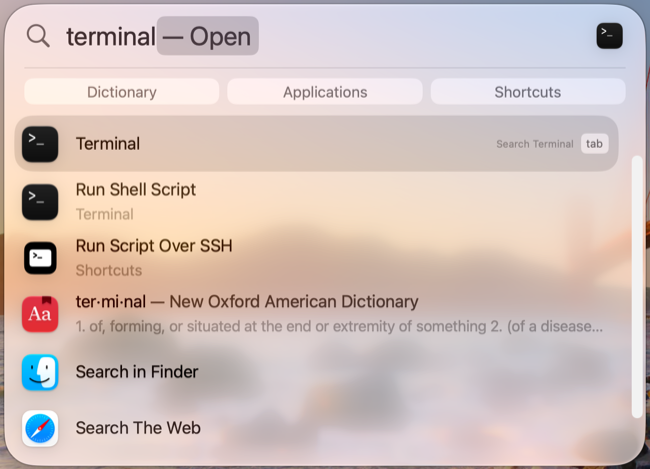
- Press Command-Space to open Spotlight, type “terminal,” and press Return.
You can also click the Spotlight icon (the magnifying glass) in the menu bar. Some people remove the Spotlight icon from the menu bar, but Command-Space still works unless someone has disabled or reassigned the shortcut.
You can also:
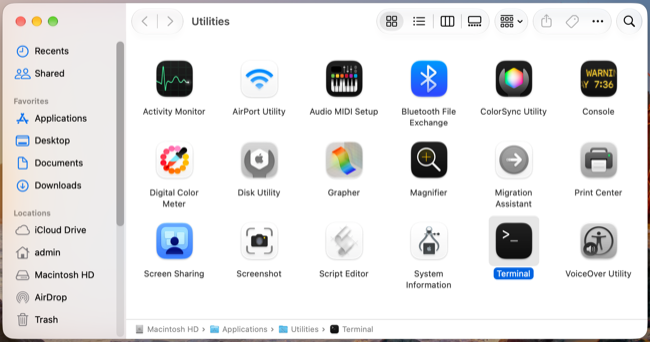
- Use the Finder to look in the
Applications/Utilities/folder for the Terminal application. - The keyboard shortcut F4 will open Search. Type “terminal” in the search field, then click the Terminal application.
- Click the Apps icon in the Dock (or press Command-Space, then Command-1) and type “terminal.” Launchpad is gone in macOS 27 Golden Gate; see Where Is Launchpad in macOS 27.
Use Spotlight search to open Terminal on Mac
Press Command-Space, or click the Spotlight icon, the magnifying glass in the top-right corner of the menu bar. Type “terminal.” When Terminal appears as the top result, press Return or click it to launch the terminal.
Where is the Mac Terminal
Using Finder, the Mac file browser, you can find the Terminal Application in the file system inside the Applications/Utilities/ folder.
Keyboard shortcut to open Terminal
macOS has no built-in keyboard shortcut that opens Terminal. The quickest way is Command-Space, then type “te” and press Return. Spotlight learns that you want Terminal after a few uses.
To open Terminal with a single key combination, make your own shortcut with Apple's Shortcuts app:
- Open the Shortcuts app and create a new shortcut.
- Add the
Open Appaction and choose Terminal. - Open the shortcut's details (the info button), click
Add Keyboard Shortcut, and press the keys you want. Choose a combination other apps don't use, such as Control-Option-Command-T.
Keyboard shortcuts in Terminal
Once Terminal is open, these shortcuts are the ones you'll use most:
- Command-N - Open a new Terminal window
- Command-T - Open a new tab
- Command-W - Close the tab or window
- Command-K - Clear the screen
- Control-C - Stop the command that is running
- Control-A - Move the cursor to the start of the line
- Control-E - Move the cursor to the end of the line
Use Command-N or Command-T when you need a second terminal open at the same time.
Editing commands: what to expect
In Apple's Terminal, you can't edit a command like text in other Mac apps. Clicking in the middle of a command doesn't put the cursor there (Option-click moves it, but only on the current line), and you can't select a word with the mouse and type over it. You fix a typo with the arrow keys and the Control shortcuts in the list above, which makes a long command cumbersome to correct.
Warp, an upgraded terminal, works differently. You edit a command like a text document, with the mouse and familiar Mac shortcuts: click anywhere in a long command to fix a typo, or select text and type over it. That's one reason I recommend Warp for beginners. The free app mentioned above can install Warp for you.
Open Terminal in a Finder folder
You can open Terminal already in a folder you see in Finder, so you don't have to type the folder's path.
- Control-click (right-click) the folder in Finder and choose
Services›New Terminal at Folder. - Or drag the folder onto the Terminal icon in the Dock.
If New Terminal at Folder is missing, open System Settings › Keyboard › Keyboard Shortcuts › Services, and turn it on under Files and Folders. You can assign it a keyboard shortcut there too.
Going the other way, the command open . opens the folder you are in at the command line in a Finder window.
Command Prompt on Mac
If you're coming from Windows, Terminal is the Mac's version of Command Prompt (cmd) or PowerShell. Open it any of the ways shown above. The Mac shell is zsh, and some commands differ from Windows: use ls instead of dir to list files, and clear instead of cls to clear the screen.
Try the Mac Terminal
Try out the Mac Terminal application by entering a shell command:
$ whoami
The Unix shell command whoami returns your username.
Don't type the $ character you see in the example above (otherwise you'll see zsh: command not found: $). It's just a convention we use to indicate the command line prompt.
Just a reminder to absolute beginners: Press "Enter" (return) after you type the command.
What's next
You'll need to learn more about:
- What is the shell
- Running commands
- Navigating the file system
- Shell Configuration
- Environment variables
- Editing files from the command line
- Mac Path
See Mac Terminal for more details.
To do programming on the Mac, you'll need to install:
- Xcode Command Line Tools,
- Homebrew, a package manager for macOS.
Continue setting up your Mac
Don't miss the full visual roadmap and checklist that shows how to set up a Mac for software development, with all the essential tools and settings you might not yet know about.