Mac Install Medic for Java
This is a free Mac app that fixes the "Unable to locate a Java Runtime" error for you. It is from the author of the Mac Install Guide. It is the fastest path from that error to a working, verified Java setup.
You hit the error. A java command failed, or an app or a game will not open, and macOS keeps reporting "Unable to locate a Java Runtime." Maybe you have already tried a fix or two. Don't get bogged down by terminal commands and unreliable AI instructions, and don't risk messing up your Mac just to clear one error.
This free app fixes it for you, the way an expert would, in about two minutes. You do not type a single command. It diagnoses the cause, shows you each change before it makes it, installs a Java runtime and sets JAVA_HOME correctly, and then proves java -version works in a fresh terminal, so you know the error is gone, not just hidden. If you would rather understand each step, my Mac Install Guide tutorials explain every cause. If you would rather just have the error fixed, this app is for you.
Download the app "Mac Install Medic for Java"
No account is needed. There is no trial, no paid upgrade. Most fixes finish in a few minutes. There is no catch; the Java it installs is free, standard, open-source software.
When this app helps
You are seeing the error because macOS cannot find a working Java runtime. That happens in a few ways, and the app handles all of them:
- You never installed Java, and an app, a course, or a command expects it.
- You installed Java, but the terminal still cannot find it, because
JAVA_HOMEor your PATH is not set correctly. - You already tried a fix or two and want a tool to tell you what is actually wrong, instead of more trial and error.
What the app does, step by step
I built this to be an app I can trust, so nothing happens behind your back. The app shows you each step, in detail, before it runs anything.
- It diagnoses the problem. It looks for any Java (JDK) you already have, checks your
JAVA_HOMEsetting, and inspects your shell configuration, then explains exactly whyjavais not being found.
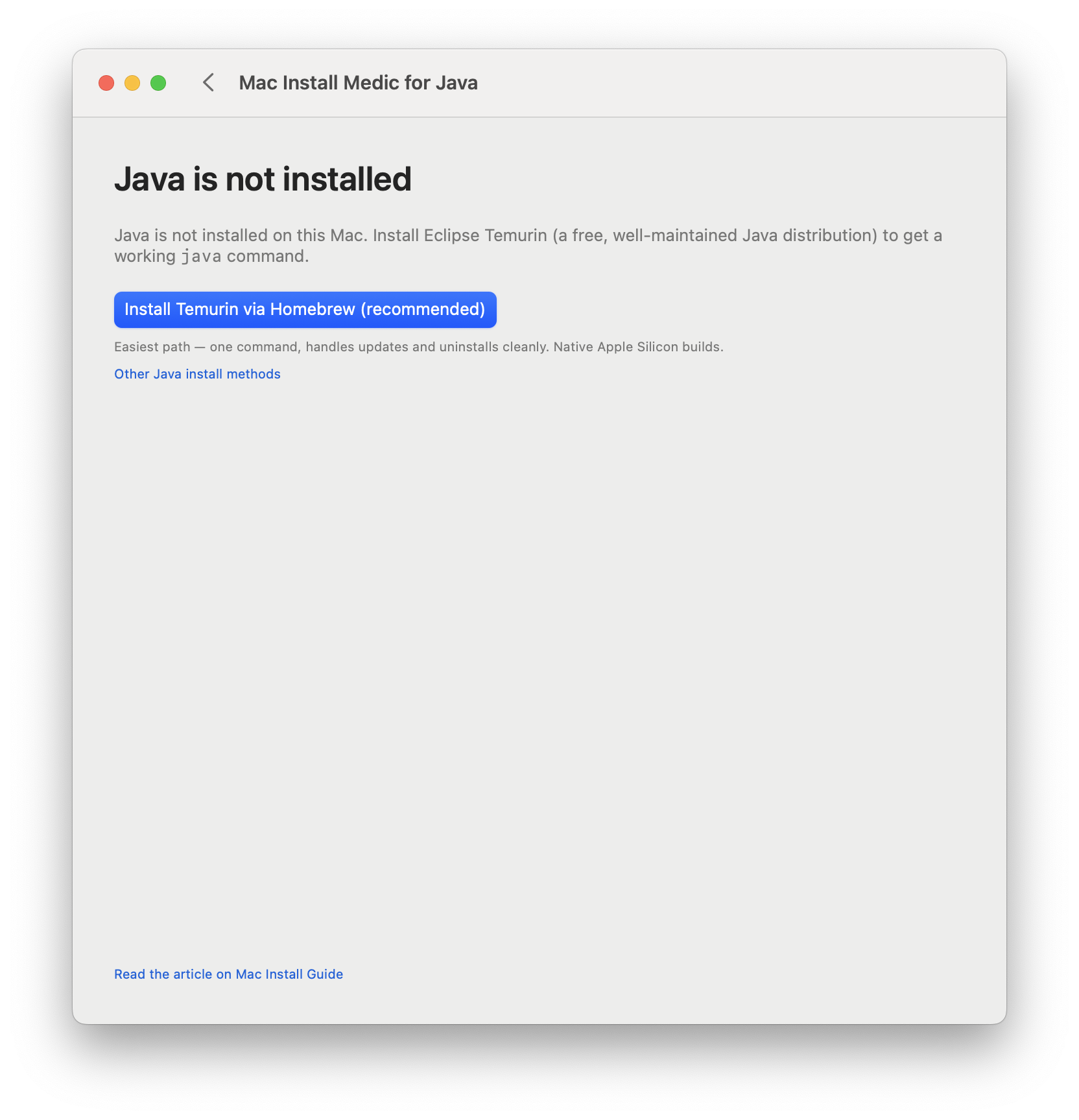
- It recommends a fix. Based on what it found, it picks the simplest remedy: usually installing Java with Homebrew if you are a developer, or downloading Adoptium's free Java package if you are not.
- It installs Java with your permission. When you click Install, macOS shows its standard password prompt (nothing custom). Progress shows as it goes, and you can cancel at any moment.
- It sets
JAVA_HOMEfor you. If your shell configuration needs a correction, the app shows you the exact change first, then backs up the configuration file before editing it.
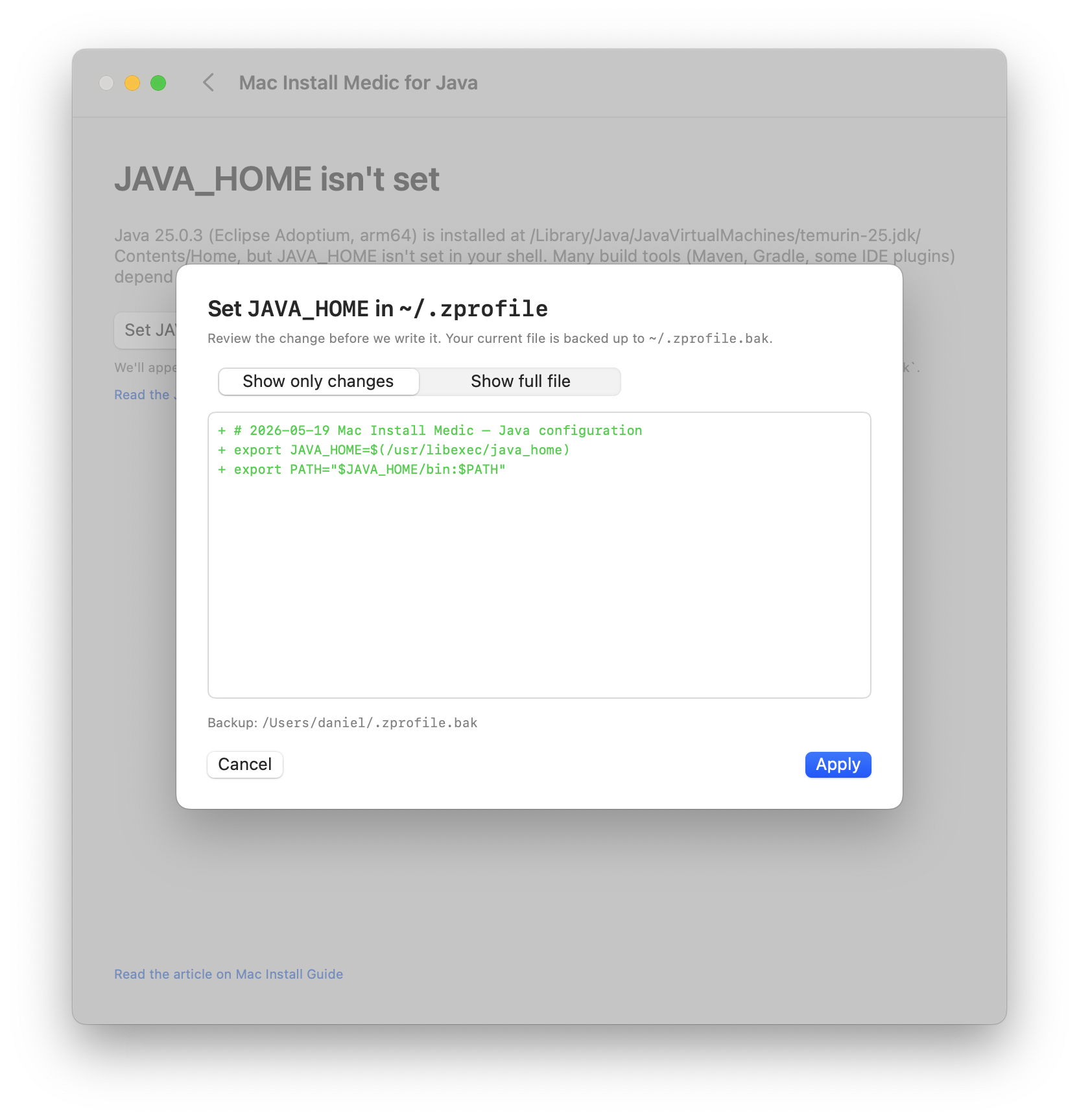
- It verifies the fix. It opens a fresh shell, runs
java -version, and shows you the output, so you know the error is genuinely gone. If something is still wrong, it explains what.
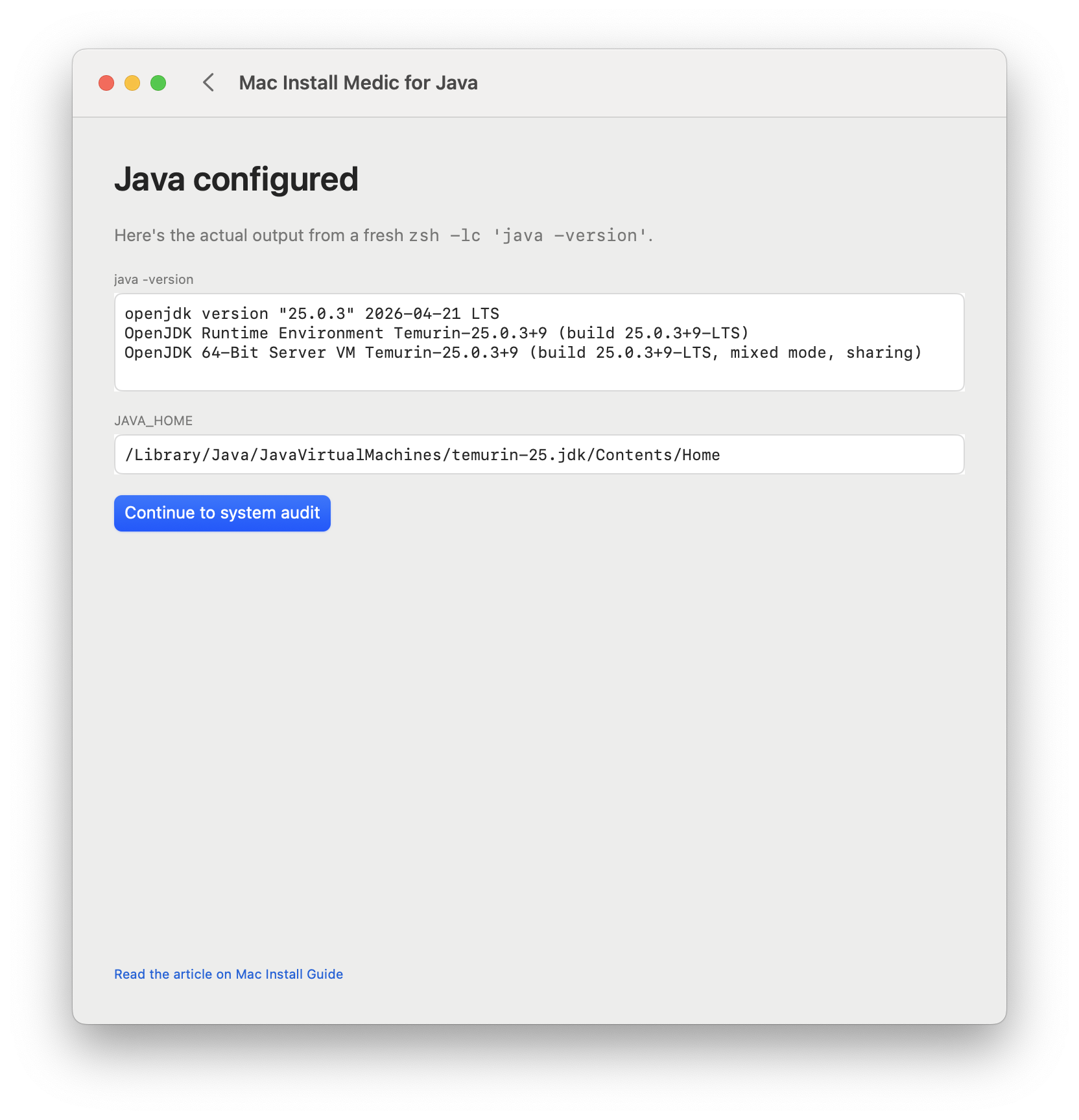
Most fixes take one to three minutes.
Why use the app instead of the tutorial
You can correct the error by hand, and my Fix "Unable to Locate a Java Runtime" tutorial covers every cause in detail. Reading it is still the best way to understand the why.
But the error has several possible causes, and the usual reason people stay stuck is fixing the wrong one, or making a small shell-configuration mistake that leaves the error in place. The app diagnoses the actual cause, makes the right change without typos, and then proves java -version works in a fresh terminal, so you finish with the error gone, not just a download.
I am the author of the Mac Install Guide and have written macOS tutorials since 2018. I added the Medic apps because some problems are simply faster to fix with a tool than with a tutorial. The app does exactly what the tutorial describes, far faster, with a verified result.
The system audit
After the fix, once java -version works, the app offers a short, optional audit of the rest of your Mac developer setup: your terminal application and basic foundations such as the Xcode Command Line Tools and Homebrew. You may see a few suggestions for upgrades or tools I recommend. If you would rather not have the advice, you can skip the audit entirely. The Java fix does not depend on it.
Is it safe to run?
Short answer: yes, and you can check every part of it.
- Signed and notarized by Apple, under my company Timecasters LLC (Apple Developer Team ID
XY4JQU6NJ8). macOS Gatekeeper launches it without warnings, after the standard "downloaded from the internet" first-launch confirmation. - Every change is shown first. Before it acts, the app shows you the Java package it will install, the
JAVA_HOMEline it will add, and the backup it will make. Nothing is stealthy or tricky. - Your password stays with macOS. Anything that needs a password uses Apple's standard authorization dialog, so the system handles it, never the app.
- It does not remove or change what you have. It never uninstalls a JDK you already have, and it does not change which Java your projects use: version managers such as SDKMAN, Mise, or jEnv keep working as before.
- It does not linger. No background process, no menu bar app, no launchd service, no auto-launch at login, no auto-update. Quit it and it is gone until you open it again. New versions you download yourself, the same way you downloaded this one.
Your privacy
The app sends anonymous event counts so I can tell whether it is actually helping people, for example "the diagnosis step finished" or "the verify step passed." It does not send your name, email address, IP address, or any identifier I could use to contact you, and it does not send your shell config, your files, or a list of what is installed on your Mac. Each launch gets a random session identifier that resets when you quit. Full details are in the Mac Install privacy article.
Download the app "Mac Install Medic for Java"
System requirements and how to run it
The app runs on macOS 14 or later, on Apple Silicon (M-series) or Intel Macs. It needs about 5 MB of disk space, plus about 150 MB of temporary space during the Java install, and an internet connection for the Adoptium or Homebrew download.
First, check the macOS version. If you are running an older version, update macOS to the latest macOS version. Then:
- Download
Mac-Install-Medic-for-Java.dmgfrom downloads.install.guide. - Double-click the file to mount the disk image.
- Drag the app to
/Applications/. - Launch the app from
/Applications/or from Spotlight. - Accept the first-run consent screen.
- Click "Diagnose Java" to begin.
The app takes care of the rest. I hope you like it.