Mac Install Medic for Java
Mac Install Medic for Java is a free Mac app that fixes the "Unable to locate a Java Runtime" error in about two minutes. The app diagnoses what is missing, installs a Java runtime, sets JAVA_HOME correctly, and confirms the fix worked. Read on to see what the app does, why I built it, and how you can be sure it is safe to run on your Mac.
If you want, you can correct the error manually. But why? The app exists so you can get the fix right away, with confidence of success, without reading the entire tutorial.
Download Mac Install Medic for Java for FREE
Why I built this
I am the author of the Mac Install Guide, writing helpful macOS tutorials since 2018. The Medic apps are software programs I've recently added to the site. You can still read the tutorials but I've repeatedly seen some problems are easier to fix with a tool than with a tutorial.
Reading the tutorials is still the best way to understand the why. But sometimes it is better to just make the fix, with confidence, and then learn the details. I built this app so everything is fixed without glitches from typos or oversights. It is just like working through the tutorial, but ten times faster, with a verified result.
The app is free. There is no paid upgrade, no trial period, and no account to create. I hope you'll use it.
What the app does
I built this to be an app I can trust. Nothing happens behind your back. The app shows you each step, in detail, before it runs anything.
- It will diagnose the problem. The app looks for Java JDK packages you already have installed, checks your
JAVA_HOMEsetting, and inspects your shell config. The app then explains exactly whyjavais not being found.
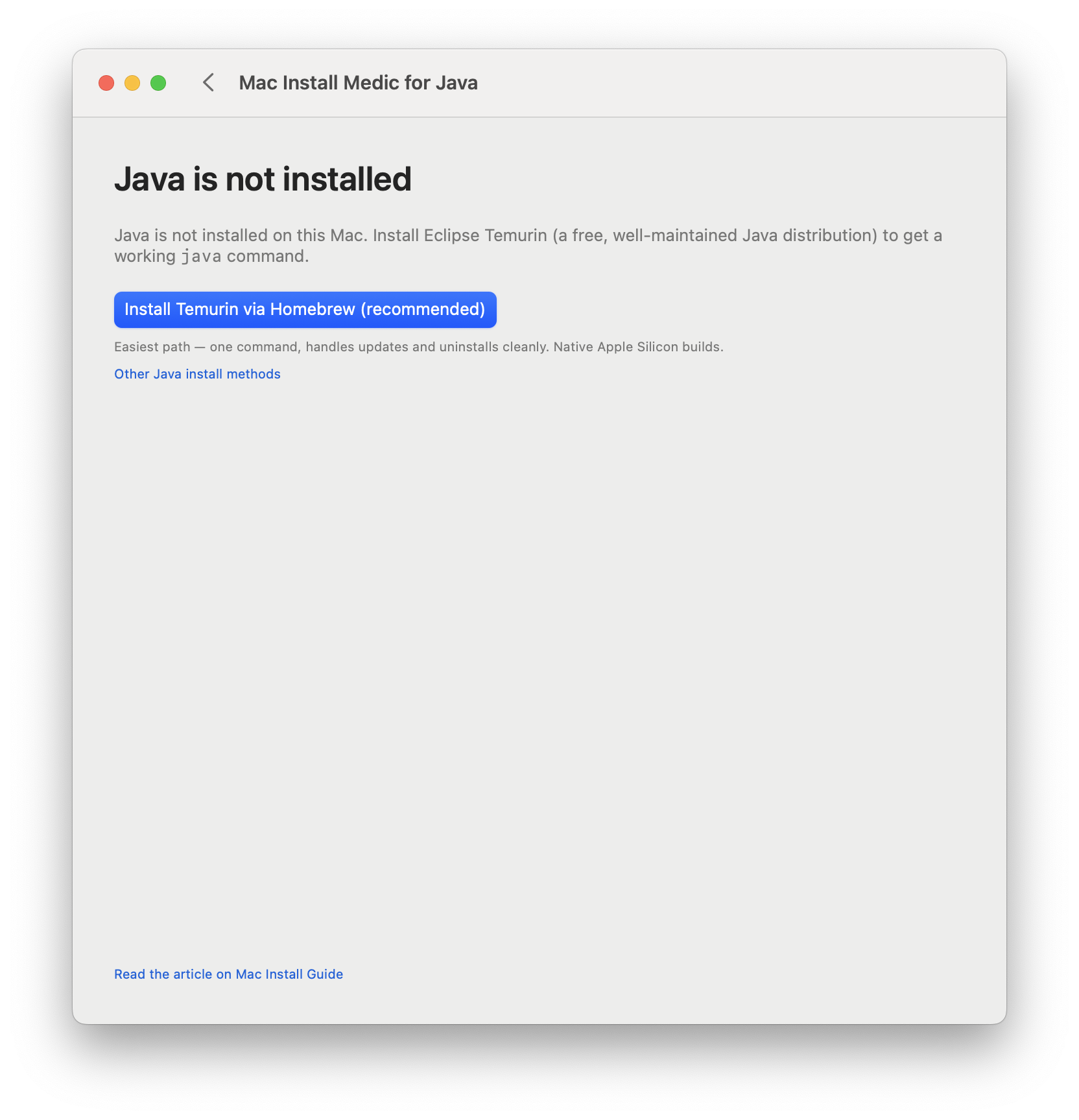
- It will recommend a fix. Based on what the app found, it picks the simplest remedy. The usual choices are installing Java with Homebrew (for a developer) or downloading Adoptium's Java package (for a non-developer).
- It will install Java with your permission. When you click Install, macOS shows its standard password prompt (nothing tricky or custom). Update progress shows console output, and you can cancel at any moment.
- It will set
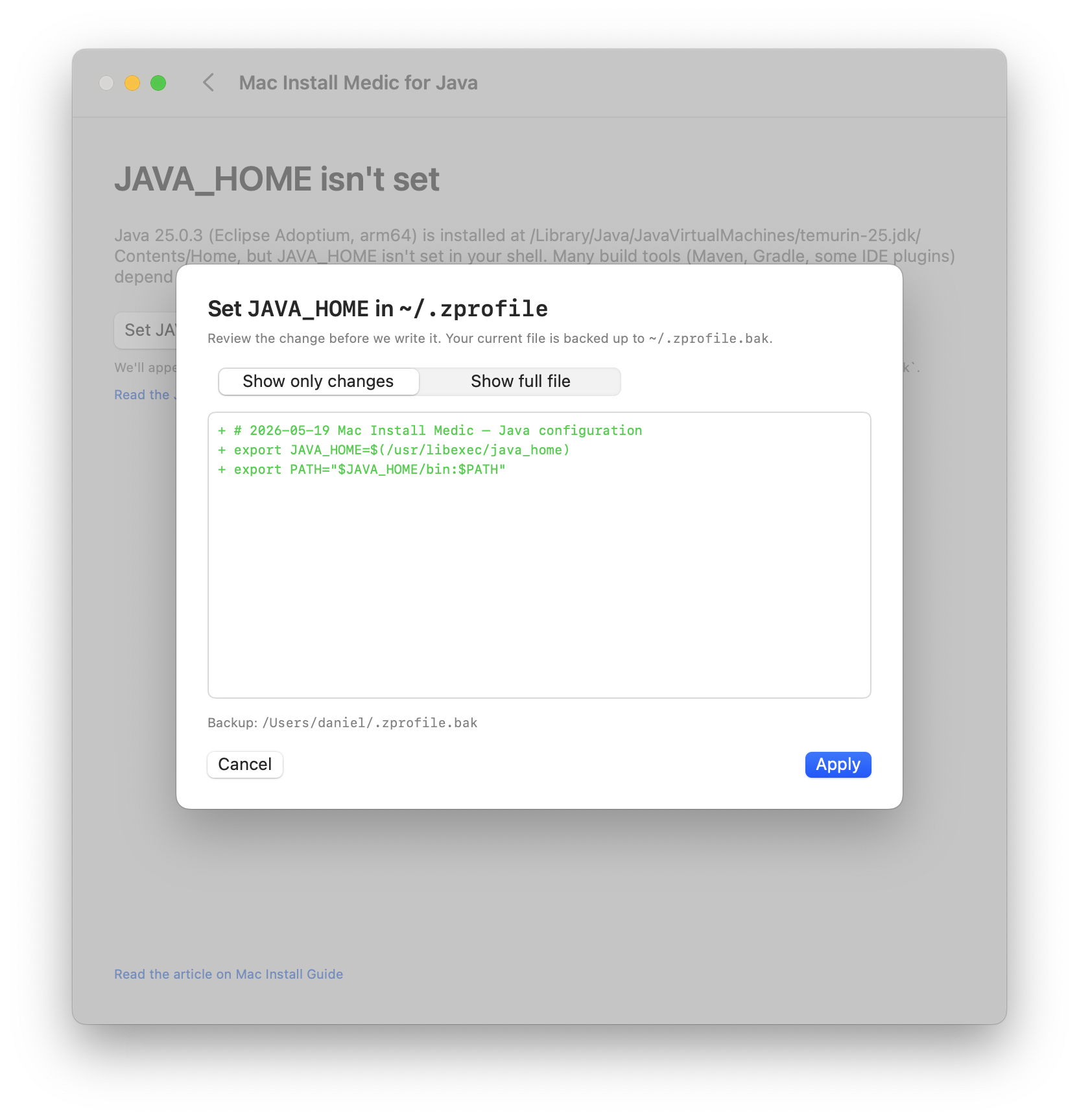
JAVA_HOMEfor you. If your shell configuration needs a correction, the app shows you the exact changes first. The app then makes a backup of the configuration file before making the change.
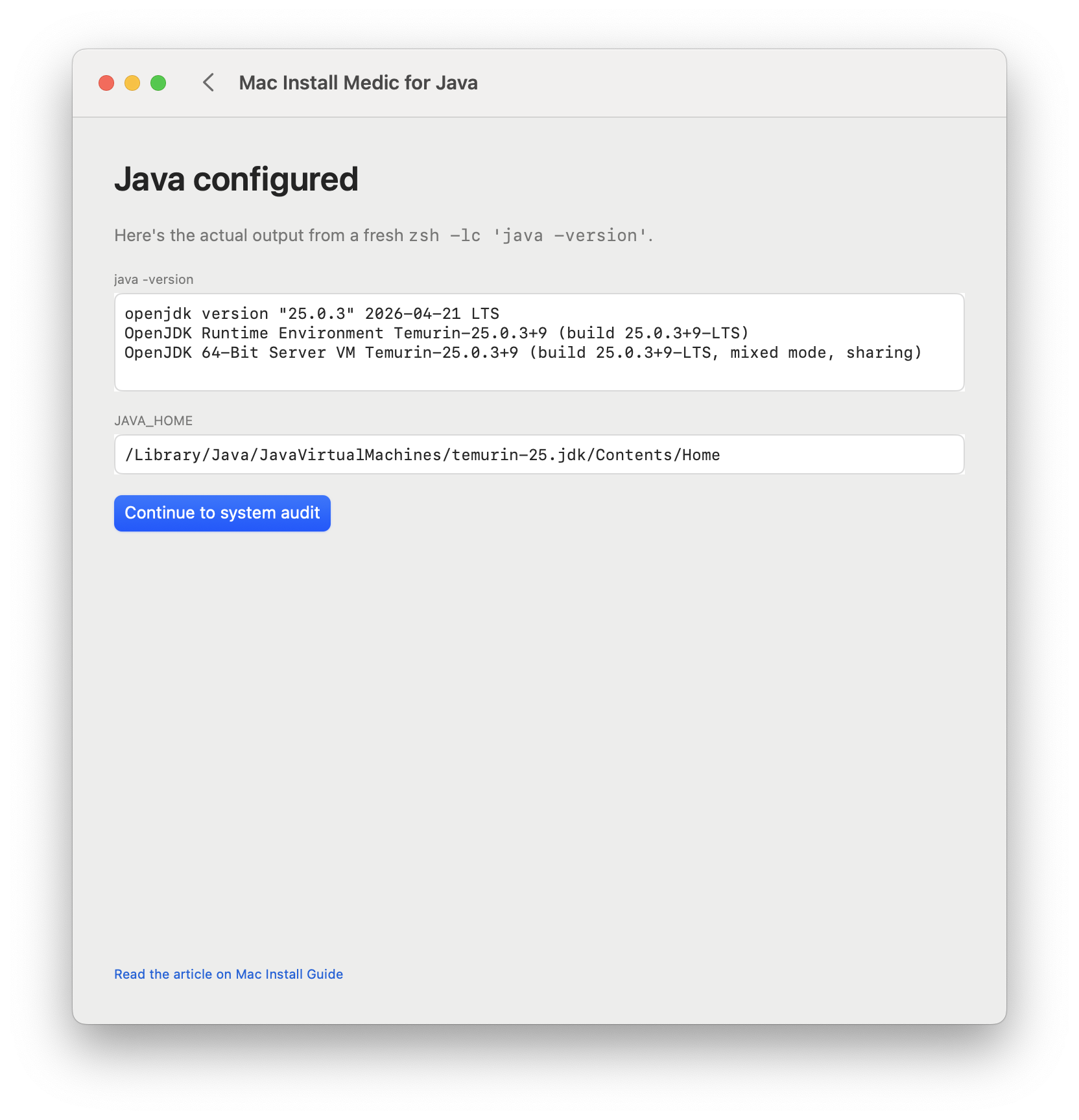
- It will verify the fix. The app opens a fresh shell, runs
java -version, and shows you the output. In most cases, the app can fix the Java problem, and if not, the app explains what went wrong.
Most fixes take between one and three minutes. Yes, it's fast.
Why use the app instead of doing it by hand
You can correct the error manually. The Fix "Unable to Locate a Java Runtime" tutorial covers every step in detail. The app exists so you can get the fix right away, with confidence of success, without reading the entire tutorial.
The app also helps when you have tried a couple of fixes already and want a tool to check what is going on rather than continuing with trial-and-error.
The verification step is the most valuable part. The app proves that java -version works in a fresh terminal, so you can be sure that Java is installed and working.
The system audit
After the fix, once java -version works, the app offers to run a short audit of the rest of your Mac developer setup. The audit checks your terminal application and basic development foundations such as Xcode Command Line Tools and Homebrew. Based on the audit, you may see some suggestions for software upgrades or tools I recommend. But if you do not want my advice, you can skip the audit entirely. The Java fix does not depend on it.
System safety
The app is signed and notarized by Apple for the Apple Developer account for my company Timecasters LLC (Apple Developer Team ID XY4JQU6NJ8). The macOS Gatekeeper security launches the app without warnings after the standard "downloaded from the internet" first-launch confirmation.
The app uses standard-system macOS authorization dialogs for anything that needs your password. Apple's macOS handles your password with Apple's built-in security.
To be sure the app does not operate without your knowledge, the app shows every change before making the change: the Java package it is about to install, the JAVA_HOME line it is about to add, and the backup it will create.
There is nothing stealthy or tricky. The app does not run in the background. There is no menu bar app, no launchd service, and no auto-launch at login. When you quit the app, it is gone until you open it again. The app does not auto-update. When a new version ships, you download it the same way you downloaded this one. Silent updates do not surprise you.
It is exactly the app that you'd expect from a trusted author and teacher.
Your privacy
The app sends anonymous event counts so I can tell whether the app is actually helping people. Examples include "the diagnosis step finished" or "the verify step passed." Understandably, I want to know if the app is useful. But I do not get any private info.
The app does not send your name, email address, IP address, or any identifier I could use to contact you. The app does not send the contents of your shell config or any other files. The app does not send a list of what is installed on your Mac.
To stay anonymous, each launch gets a random session identifier that resets when you quit. Full details are in the Mac Install Medic privacy article.
What the app does not do
Here are a few things people might worry about, that the app does not do:
- The app does not uninstall anything. Old JDKs stay where they are.
- The app does not change which Java version your projects use. Project-specific version managers such as SDKMAN, Mise, or jEnv keep working as before.
- The app does not try to manage Java after you quit the app. Once the fix lands, the app's job is done.
System requirements
The app runs on macOS 14 or later, on Apple Silicon (M-series) or Intel Macs. The app needs about 5 MB of disk space, plus about 150 MB of temporary space during the Java install. You also need an internet connection for the Adoptium or Homebrew downloads.
How to download and run the app
First, check the macOS version. If you're running an older version, update macOS to the latest macOS version.
The app downloads as a standard macOS disk image. Follow these steps to install:
- Download
Mac-Install-Medic-for-Java.dmgfrom downloads.install.guide. - Double-click the file to mount the disk image.
- Drag the app to
/Applications/. - Launch the app from
/Applications/or from Spotlight. - Accept the first-run consent screen.
- Click "Diagnose Java" to begin.
The app takes care of the rest. I hope you like it!